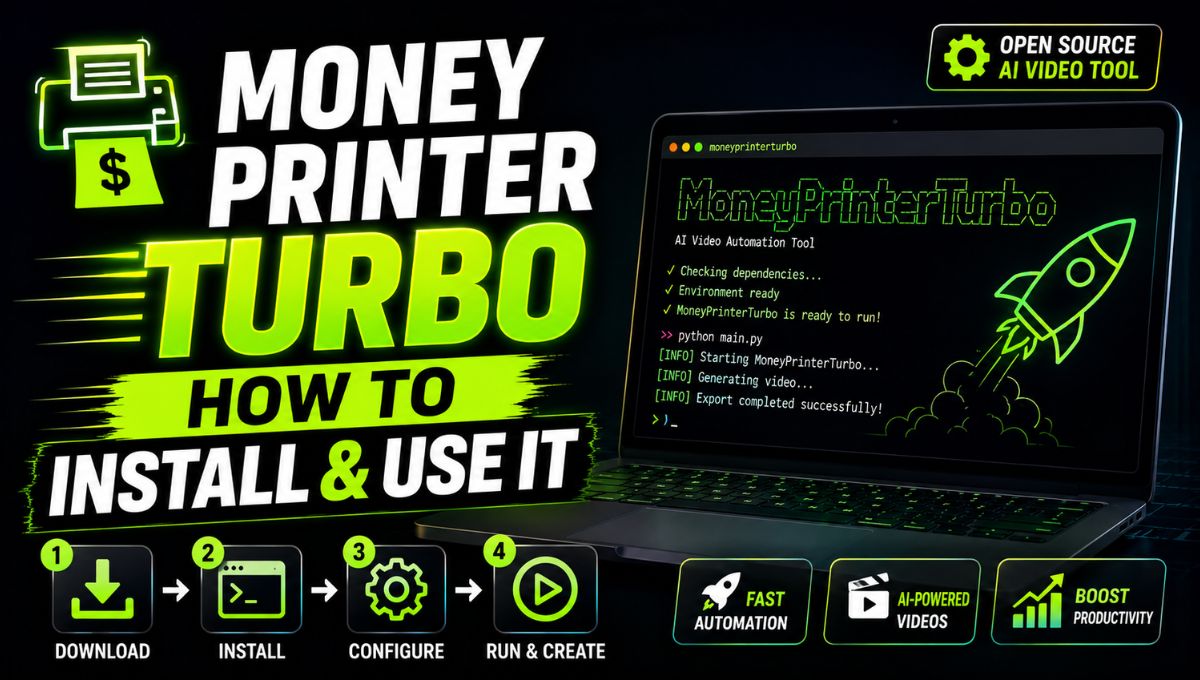
MoneyPrinterTurbo is an open-source AI video creation tool that automates several parts of short-video production, including script generation, video-material selection, text-to-speech narration, subtitles, background music, and video rendering. Unlike a typical browser-based AI video generator, MoneyPrinterTurbo can be installed and run locally, deployed with Docker, or tested through Google Colab.
MoneyPrinterTurbo is best suited to creators who want more control over their AI video workflow rather than a simple “enter a prompt and download a video” service. The project supports multiple LLM and text-to-speech providers, local or online media, a WebUI, command-line workflows, and an API, making it useful for faceless videos, YouTube Shorts, Instagram Reels, educational content, and automated video production.
The project has also continued to receive substantial updates. The current GitHub releases page lists v1.3.3 as the latest release, with recent releases adding features such as voiceover preview, task management, additional AI providers, YouTube Shorts publishing support, improved subtitle handling, Docker support, and CLI improvements.
That makes MoneyPrinterTurbo more interesting than an older “AI faceless video generator” project that simply generates a script and combines stock footage.
What Is MoneyPrinterTurbo?
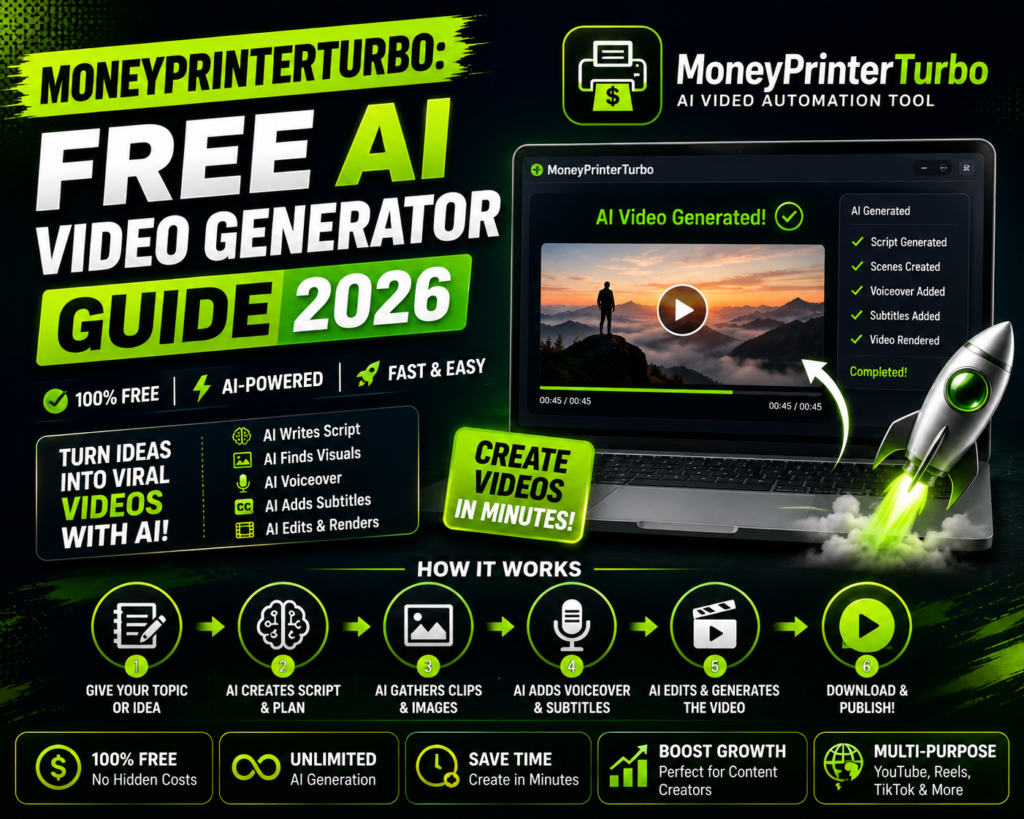
MoneyPrinterTurbo is an open-source AI video generator and video automation platform available through GitHub.
The project is designed to turn a topic into a structured short video by connecting several components in a single workflow.
A typical MoneyPrinterTurbo workflow looks like this:
Topic → AI Script → Voiceover → Video Materials → Subtitles → Background Music → Video Rendering
The project can use an LLM to generate or assist with the script, retrieve or use video materials, synthesize narration, generate subtitles, add background music, and combine everything into a final video.
This approach is particularly useful for people creating videos where they do not need to appear on camera.
For example, a creator could enter:
“5 Free AI Tools for Bloggers in 2026”
and use the resulting workflow to create a narrated educational video using stock footage, subtitles, music, and AI-generated content.
The final output should still be reviewed and edited before publication because automated generation does not guarantee factual accuracy, strong storytelling, or perfect visual matching.
Is MoneyPrinterTurbo Really Free?
MoneyPrinterTurbo is open-source software, so the project source code is publicly available and the application can be self-hosted.
However, there is an important difference between free software and a completely free video-generation service.
MoneyPrinterTurbo can connect to external AI and media providers.
Depending on your configuration, you may need:
- An LLM API key
- A text-to-speech provider
- A stock-video API
- Other third-party services
- Internet access for online resources
Some external providers may charge separately for their API usage.
Therefore, it is more accurate to describe MoneyPrinterTurbo as a free/open-source AI video automation project, rather than promising that every possible AI generation workflow costs nothing.
What Is New in MoneyPrinterTurbo?
MoneyPrinterTurbo has changed considerably through recent releases.
The current releases page identifies v1.3.3 as the latest release and shows a progression of new features and improvements.
Voiceover Preview
Version 1.3.3 added voiceover preview with an estimated duration before video generation. This is useful because creators can check the narration before committing to the complete rendering process.
Improved WebUI
Version 1.3.2 introduced a redesigned responsive WebUI, a dedicated settings interface, improved dark-mode support, and an onboarding tour.
The same release added task management features, including status filtering, progress tracking, video playback, folder access, deletion, and regeneration from previous task settings.
LLM Connection Testing
Recent releases added built-in LLM connection testing.
This means users can verify provider credentials and model configuration before attempting full video generation.
That can save time when configuring a new AI provider.
More AI Providers
Recent releases added integrations including AIML API, EvoLink, VolcEngine Ark, Groq, AIHubMix, Xiaomi MiMo, and other provider options.
The project also documents support for providers such as OpenAI, Google Gemini, Qwen, DeepSeek, Ollama, and other compatible services.
Additional Text-to-Speech Options
The release history also shows additions such as ElevenLabs and a self-hosted OpenAI-compatible Chatterbox TTS option.
This gives creators more flexibility when choosing AI voice generation.
YouTube Shorts Publishing
A recent release added YouTube Shorts publishing support through Upload-Post.
This is particularly relevant for creators building an automated short-form video workflow.
MoneyPrinterTurbo Features
MoneyPrinterTurbo’s current feature set goes beyond basic AI video generation.
AI Script Generation
MoneyPrinterTurbo can use configured language models to help create video scripts.
Users can customize script-related settings, and a recent release added advanced controls such as paragraph count, custom script requirements, and an optional custom system prompt.
This is useful when you want greater control over:
- Video length
- Script structure
- Tone
- Number of paragraphs
- Specific instructions
- Target audience
Text-to-Speech
MoneyPrinterTurbo supports AI voice generation through configured text-to-speech providers.
Recent updates have expanded TTS options and improved audio preview controls.
This allows a text-based script to become narrated video content.
Automatic Subtitles
Automatic subtitle generation is an important part of the platform.
Recent releases improved subtitle settings, multilingual rendering, wrapping, background controls, and related reliability.
This is especially useful for short-form social videos where viewers often watch with sound muted.
Background Music
MoneyPrinterTurbo can add background music to generated videos.
The audio settings allow creators to control the relationship between narration and music.
For educational or informational videos, background music should generally remain subtle enough that the narration stays clear.
Stock Video Materials
MoneyPrinterTurbo can work with online video-material sources and local materials.
Recent versions have added providers such as Coverr, while the project also supports sources such as Pexels depending on configuration.
Creators should always verify the current licensing conditions of external footage before using it commercially.
Local Media
The project can also work with local materials.
This means you are not necessarily limited to automatically selected stock footage.
You can build a workflow around your own images, videos, narration, and audio assets.
No-Voice Video Generation
A recent release added a no-voice video mode for workflows that do not require narration.
This is useful when you want a video consisting of visuals, subtitles, and music without an AI voiceover.
Multiple Aspect Ratios
MoneyPrinterTurbo has examples and workflows for both vertical 9:16 and horizontal 16:9 video formats.
That makes it suitable for different types of content, including:
- YouTube Shorts
- Instagram Reels
- TikTok
- Standard YouTube videos
- Educational videos
- Landscape presentations
MoneyPrinterTurbo Download: Where Should You Download It?
The safest option is to download MoneyPrinterTurbo from its official GitHub repository and release page.
MoneyPrinterTurbo Official GitHub Repository
The current documentation specifically tells Windows users to download the latest one-click package from GitHub Releases.
Avoid random third-party websites offering modified EXE files or “premium unlocked” versions.
A third-party package may not contain the same code as the official project and can introduce unnecessary security risks.
How to Download MoneyPrinterTurbo on Windows
Windows users have one of the simplest documented installation methods.
Step 1: Open the Official Release Page
Go to the MoneyPrinterTurbo GitHub Releases page.
Look for the latest Windows one-click package.
The current project documentation directs users to the latest GitHub release.
Step 2: Extract the Package
Extract the downloaded package directly to a suitable folder.
The project documentation recommends avoiding paths containing Chinese characters, special characters, or spaces because they can cause problems with the application.
A simple location such as:
C:\MoneyPrinterTurbo
is preferable.
Step 3: Run update.bat
After extracting the package, run:
update.bat
The current documentation recommends doing this first so the bundled installation can update its code.
Step 4: Run start.bat
Next, run:
start.bat
The application should launch its WebUI and open a browser automatically.
If the automatically opened page is blank, the documentation recommends trying Chrome or Edge.
How to Install MoneyPrinterTurbo Manually
Manual installation is useful for developers and advanced users.
The current project supports Python 3.11 or later and recommends uv for environment and dependency management.
Start by cloning the repository:
git clone https://github.com/harry0703/MoneyPrinterTurbo.git
cd MoneyPrinterTurbo
Then install Python 3.11 with uv:
uv python install 3.11Install the project’s dependencies:
uv sync --frozenThe official project also retains a requirements.txt file for legacy pip-based installation.
For production or long-term installations, follow the current README rather than copying installation commands from old tutorials because the project’s dependency system has changed over time.
How to Configure MoneyPrinterTurbo
After installation, configuration is one of the most important steps.
MoneyPrinterTurbo uses configuration settings for things such as:
- LLM provider
- API keys
- Video-material sources
- Text-to-speech
- Video settings
- Storage
- Audio
- Subtitles
The project provides a config.example.toml file that can be copied to config.toml.
A basic configuration workflow is:
Copy example configuration → Rename to config.toml → Add provider settings → Add API keys → Start MoneyPrinterTurbo
Recent versions also provide more configuration through the WebUI, which can make setup easier than editing every value manually.
Protect Your API Keys
Never publish API keys in:
- Blog screenshots
- YouTube videos
- GitHub repositories
- Public configuration files
- Social-media posts
If an API key becomes publicly visible, revoke or rotate it through the relevant provider.
Which AI Models Can MoneyPrinterTurbo Use?
MoneyPrinterTurbo supports multiple AI providers rather than forcing users to use one specific model.
The current project documentation and release history reference providers and integrations including:
- OpenAI
- Google Gemini
- Qwen
- DeepSeek
- Ollama
- Groq
- AIML API
- AIHubMix
- Xiaomi MiMo
- VolcEngine Ark
- EvoLink
- LiteLLM-compatible gateways
- Other OpenAI-compatible providers
This flexibility is one of MoneyPrinterTurbo’s strongest features.
For example, advanced users can experiment with cloud-based models while others can connect compatible local models through Ollama.
However, the exact available models and provider configuration can change, so always check the current project configuration and provider documentation.
How to Use MoneyPrinterTurbo to Create an AI Video
Once MoneyPrinterTurbo is installed and configured, creating a video follows a relatively straightforward workflow.
Step 1: Open the WebUI
Launch MoneyPrinterTurbo.
For the standard local WebUI, the documented address is:
http://127.0.0.1:8501
The WebUI allows you to configure your video without entering every command manually.
Step 2: Enter Your Video Topic
Choose a specific topic.
For example:
A specific topic is better than entering:
AI
because the AI script generator has more context.
Step 3: Configure the Script
Choose your preferred LLM provider and configure the script requirements.
Recent versions provide advanced script settings such as paragraph count and custom requirements.
For example:
Topic: Best Free AI Tools for Bloggers
Audience: Beginner bloggers
Tone: Helpful and practical
Structure: Introduction + 5 tools + conclusion
Length: Short-form video script
This can produce a much more focused result than simply entering a keyword.
Step 4: Select Video Materials
Choose an online material source or use your own local footage.
If you are making a video about AI tools, relevant footage could include:
- Laptop screens
- AI interfaces
- Bloggers working
- Technology animations
- Coding footage
- Office scenes
- Abstract AI visuals
Relevant visuals are important because automatically selected stock footage can sometimes be only loosely related to the narration.
Step 5: Select a Voice
Choose your configured text-to-speech provider and voice.
Listen to the preview before rendering if the current version provides the preview option.
The latest v1.3.3 release specifically added voiceover preview with estimated duration.
Step 6: Configure Subtitles
Choose:
- Font
- Size
- Position
- Color
- Outline
- Background
For vertical short-form videos, keep subtitles large enough to read on a smartphone.
Step 7: Add Background Music
Choose background music and adjust its volume.
Do not allow music to overpower narration.
Step 8: Choose Video Format
For Shorts, Reels, and TikTok-style videos, use a vertical format such as 9:16.
For standard YouTube videos, use a horizontal format such as 16:9.
MoneyPrinterTurbo’s project examples include both vertical and horizontal workflows.
Step 9: Generate the Video
Start the generation process.
MoneyPrinterTurbo then combines the configured components into a final video.
The time required varies based on:
- Computer hardware
- Video duration
- Number of clips
- AI provider
- TTS provider
- Rendering settings
- Whether processing is local or cloud-based
Do not assume that every video will be generated in exactly a few minutes.
Step 10: Review Before Publishing
Always watch the complete output.
Check:
- Script accuracy
- AI hallucinations
- Voice pronunciation
- Subtitle timing
- Visual relevance
- Copyright/licensing
- Audio levels
- Scene transitions
- Video resolution
- Final duration
AI video automation saves production time, but human quality control remains necessary.
How to Create Faceless Videos With MoneyPrinterTurbo
MoneyPrinterTurbo is particularly suitable for faceless video workflows.
A typical faceless workflow is:
Topic → AI Script → AI Voice → Stock Footage → Subtitles → Music → Final Video
You do not need to appear on camera.
Possible niches include:
- AI tools
- Technology
- Education
- History
- Productivity
- Business
- Personal finance education
- Software tutorials
- Science
- Travel
- Facts and explainers
The software can automate production, but the creator remains responsible for making sure the content is original, accurate, useful, and appropriately licensed.
Can MoneyPrinterTurbo Make YouTube Shorts?
MoneyPrinterTurbo can be used for short-form video production, and recent releases include YouTube Shorts publishing support through Upload-Post.
A practical Shorts workflow could be:
Choose topic → Generate short script → Generate narration → Select vertical footage → Add subtitles → Add music → Render → Review → Publish
The tool can reduce repetitive production work.
However, it cannot guarantee views or virality.
Your video’s performance will still depend on:
- Topic
- Hook
- Audience
- Retention
- Script
- Visual quality
- Publishing strategy
- Platform distribution
Can MoneyPrinterTurbo Make Instagram Reels?
Yes, MoneyPrinterTurbo can be used to create vertical videos suitable for Reels-style content.
A creator can generate a vertical video using AI narration, stock footage, subtitles, and music.
For Instagram content, pay particular attention to:
- The first few seconds
- Large readable subtitles
- Vertical composition
- Fast but understandable pacing
- Strong visual changes
- Clear call to action
The final video should always be checked on a mobile screen before publication.
Can MoneyPrinterTurbo Make Videos Without Voice?
Yes.
The v1.3.0 release added a no-voice video generation mode for workflows that do not require narration.
This is useful when you want:
Visuals + subtitles + music
instead of:
Visuals + AI voiceover + subtitles + music
This option can work well for aesthetic videos, quote videos, visual explainers, and certain social-media formats.
MoneyPrinterTurbo Docker Installation
Docker is useful when you want a more isolated runtime environment.
The official release Docker Compose configuration uses the prebuilt image:
ghcr.io/harry0703/moneyprinterturbo:latest
The documented command is:
docker compose -f docker-compose.release.yml upThe project maps the WebUI to port 8501 and the API to port 8080 on localhost.
After starting the containers, open:
http://127.0.0.1:8501
for the WebUI.
The API documentation is available at:
http://127.0.0.1:8080/docs
Docker is particularly useful if you want to avoid installing all application dependencies directly into your main operating system environment.
MoneyPrinterTurbo on Google Colab
MoneyPrinterTurbo also provides a Google Colab workflow.
The official README specifically documents Google Colab as an option for users who want to try the software without setting up a complete local environment.
This can be useful when:
- Your computer is not powerful enough.
- You do not want to configure Python manually.
- You want to experiment with the project.
- You want to test the application before installing it locally.
Colab sessions have their own limitations, so it is better viewed as an experimentation option rather than assuming it will always provide a permanent production environment.
MoneyPrinterTurbo API
MoneyPrinterTurbo includes an API that developers can use for automation.
The project documents the local API at:
http://127.0.0.1:8080/docs
and provides an alternative ReDoc interface at:
http://127.0.0.1:8080/redoc.
This opens possibilities for developers who want to connect MoneyPrinterTurbo with:
- Content management systems
- Automation tools
- Internal dashboards
- Batch-processing workflows
- Custom applications
- AI content pipelines
For example, a developer could build a workflow where a database contains video topics and a custom application sends those topics to a video-generation pipeline.
The exact API parameters should be checked against the current version because the project continues to evolve.
MoneyPrinterTurbo CLI
MoneyPrinterTurbo also provides command-line functionality.
The official documentation gives an example using:
uv run python cli.py --video-subject "How AI is changing everyday life"CLI support is useful for users who want to automate video generation rather than manually operating the WebUI for every video.
This becomes especially interesting when combined with scripts or other automation systems.
MoneyPrinterTurbo System Requirements
The project currently supports Python 3.11 or later for manual deployment.
The project documentation and related project materials indicate that a GPU is not mandatory, although a GPU can improve performance for workloads involving local transcription, heavier processing, or batch generation.
A practical baseline is:
| Component | Practical Starting Point |
|---|---|
| Operating system | Windows, macOS, or Linux |
| Python | 3.11+ for manual setup |
| CPU | 4+ cores |
| RAM | 4 GB minimum baseline |
| GPU | Optional |
| Internet | Recommended for cloud APIs and online media |
| Storage | SSD recommended for video workflows |
The more video processing you perform locally, the more important CPU, RAM, storage speed, and GPU resources become.
Does MoneyPrinterTurbo Need a Powerful GPU?
Not necessarily.
The project documentation says a GPU is not required.
However, hardware requirements depend on your workflow.
If most AI work is handled through cloud APIs, your computer does not need to run every AI model locally.
If you use local transcription, heavier video processing, or batch generation, additional hardware can improve processing speed.
Therefore, “GPU not required” does not mean “hardware does not matter.”
MoneyPrinterTurbo vs Online AI Video Generators
| Feature | MoneyPrinterTurbo | Hosted AI Video Tool |
|---|---|---|
| Open source | Yes | Usually no |
| Local installation | Yes | Usually no |
| Self-hosting | Yes | Usually no |
| AI script generation | Yes | Depends on service |
| AI voiceover | Supported | Common |
| Stock footage | Supported | Depends on service |
| Automatic subtitles | Yes | Common |
| Background music | Yes | Often available |
| Docker | Yes | Usually irrelevant |
| API | Yes | Depends on platform |
| Technical knowledge | Higher | Usually lower |
| Customization | High | Varies |
| Subscription required | Not for the software itself | Common |
The major advantage of MoneyPrinterTurbo is control.
The major advantage of a hosted service is simplicity.
If you want to open a website and start generating videos immediately, a hosted AI video platform may be easier.
If you want an open-source workflow that you can install, configure, automate, and potentially integrate into your own systems, MoneyPrinterTurbo is more attractive.
MoneyPrinterTurbo Pros and Cons
Pros
- Open source
- Self-hostable
- No conventional MoneyPrinterTurbo subscription required to obtain the software
- AI script generation
- Multiple LLM providers
- Text-to-speech
- Voiceover preview
- Automatic subtitles
- Background music
- Online and local media
- No-voice mode
- WebUI
- API
- CLI
- Docker
- Google Colab
- YouTube Shorts publishing integration
- Active development and frequent releases
Cons
- Installation can be technical.
- External AI providers may charge for API usage.
- Configuration can be confusing for beginners.
- Video quality depends partly on external AI and media providers.
- Local rendering can require significant computing resources.
- AI-generated scripts require fact-checking.
- Stock footage licensing needs to be checked.
- Features can change between releases.
Common MoneyPrinterTurbo Problems and Fixes
MoneyPrinterTurbo Does Not Start
First check whether you downloaded the software from the official GitHub release.
On Windows, run update.bat before start.bat as recommended by the current documentation.
Also make sure the installation directory does not contain spaces or unusual characters.
Blank WebUI
If the browser opens but the page is blank, try Chrome or Edge.
The project’s documentation specifically recommends these browsers when the automatically opened page does not display correctly.
API Key Is Not Working
Check:
- API provider
- API key
- Model name
- Configuration file
- Account status
- Provider availability
- Network connection
Recent MoneyPrinterTurbo releases include LLM connection testing, which can help verify provider configuration before starting generation.
Video Generation Is Too Slow
Possible reasons include:
- Weak CPU
- Limited RAM
- Large video resolution
- Many video clips
- Local transcription
- Slow external API
- Network speed
- Heavy video encoding
A stronger GPU can help some local workloads, but it is not required for every MoneyPrinterTurbo workflow.
Subtitles Look Wrong
Check:
- Font
- Font size
- Position
- Subtitle wrapping
- Background
- Outline
- Language support
Recent releases include several subtitle reliability and customization improvements.
Is MoneyPrinterTurbo Good for Beginners?
MoneyPrinterTurbo can be used by beginners, but it is not the simplest AI video generator available.
A complete beginner may prefer a browser-based tool where everything is managed automatically.
MoneyPrinterTurbo is better suited to beginners who are willing to follow installation instructions and learn basic concepts such as:
- Python
- API keys
- Configuration
- Local WebUI
- Docker
- AI providers
Once the application is configured, the WebUI makes the actual video-generation process considerably easier.
Is MoneyPrinterTurbo Safe?
The safest way to obtain the software is through its official GitHub repository and releases.
Do not download unofficial “cracked,” “premium,” or modified versions from random websites.
The project is open source, which allows users to inspect its code, but users should still follow normal software-security practices.
You should also keep API keys private and review third-party provider terms before sending content through external AI services.
Does MoneyPrinterTurbo Create Completely Original Videos?
MoneyPrinterTurbo automates the creation process, but originality depends on the inputs and materials used.
If the workflow uses stock footage, AI-generated narration, or AI-generated scripts, the final content may still contain elements governed by third-party licensing or provider terms.
For monetized channels, carefully review:
- Stock footage licenses
- Music licenses
- AI provider terms
- Commercial-use restrictions
- Platform monetization policies
- Copyright requirements
Do not assume that “AI-generated” automatically means “copyright-free.”
Does MoneyPrinterTurbo Guarantee Viral Videos?
No.
MoneyPrinterTurbo can automate production, but it cannot guarantee views, subscribers, watch time, or virality.
The biggest factors remain:
Topic + Hook + Script + Visuals + Retention + Audience + Distribution
Automation solves the production problem.
It does not automatically solve the content-strategy problem.
Best Workflow for Bloggers and AI Websites
For an AI tools website such as Toolsvora, MoneyPrinterTurbo can be used to convert existing articles into short-form video content.
For example, if your blog publishes:
“Best Free AI Keyword Research Tools for Bloggers”
you could create a short video based on the same topic.
The workflow could be:
Blog article → Short script → AI narration → Relevant stock footage → Subtitles → Background music → Vertical video
You can then publish the video on YouTube Shorts, Instagram Reels, or other appropriate platforms.
This can create another distribution channel from content you have already researched.
For example, your Free AI Keyword Research Tools for Bloggers article can become the source material for a 30–60 second explainer video.
Likewise, an article about AI tools for different professional audiences can be supported by Best AI Tools for Professionals as part of a broader content strategy.
The important point is to adapt the article instead of simply copying the entire blog post into the video.
Better MoneyPrinterTurbo Video Formula
For short-form content, a simple structure works well:
1. Hook
Start with a clear reason to keep watching.
Example:
“Want to create faceless videos without editing everything manually?”
2. Problem
Explain what normally takes time.
“Writing the script, finding footage, recording voiceover, and adding subtitles can take hours.”
3. Solution
Introduce MoneyPrinterTurbo.
“MoneyPrinterTurbo combines several of these steps into one open-source workflow.”
4. Demonstration
Show the WebUI and generation process.
5. Result
Show the finished video.
6. CTA
Tell viewers what they should do next.
This structure is more useful than simply generating a random AI video and uploading it.
Is MoneyPrinterTurbo Worth Using?
MoneyPrinterTurbo is worth trying if you want an open-source AI video generator with greater control over scripting, voiceover, subtitles, media selection, rendering, and automation.
Its biggest advantage is flexibility.
The project is not limited to one AI provider or one way of generating content. Recent releases have expanded LLM and TTS integrations, improved the WebUI, added task management, introduced voiceover previews, expanded subtitle controls, added Docker support, improved CLI workflows, and introduced YouTube Shorts publishing support.
Its biggest disadvantage is complexity.
Someone looking for a simple website that generates a finished video with one click may find MoneyPrinterTurbo unnecessarily technical.
Someone who wants to build a customizable AI video automation workflow will likely find the open-source approach much more valuable.
The current project also offers several ways to run the software:
- Windows one-click package
- Manual Python installation
- Docker
- Google Colab
- CLI
- API
That flexibility makes MoneyPrinterTurbo particularly interesting for developers, content creators, bloggers, marketers, and people building automated faceless-video workflows.
Conclusion
MoneyPrinterTurbo has evolved into more than a basic AI script-to-video application.
It is an open-source AI video automation platform that can connect AI language models, text-to-speech providers, video sources, subtitles, background music, and video rendering into one workflow.
The current release history shows that the project is actively improving, with newer versions adding voiceover previews, task management, additional AI providers, improved subtitle controls, Docker deployment, CLI functionality, and YouTube Shorts publishing support.
For Windows users, the easiest starting point is the official one-click package from GitHub Releases.
For developers and advanced users, manual installation with Python and uv, Docker deployment, API access, and CLI workflows provide considerably more flexibility.
For people who do not want to install anything locally, Google Colab offers another way to experiment with the project.
The most important thing to remember is that MoneyPrinterTurbo automates video production, not content quality.
You should still research your topic, verify AI-generated information, check footage and music licensing, review the narration, correct subtitles, and watch the final video before publishing.
Used properly, MoneyPrinterTurbo can reduce repetitive editing work and give creators a practical way to turn topics into AI-generated faceless videos, YouTube Shorts, Instagram Reels, educational explainers, and automated social-media content.
For anyone looking for a flexible free AI video generator that is open source and self-hostable, MoneyPrinterTurbo is one of the projects worth exploring in 2026.
What is MoneyPrinterTurbo?
MoneyPrinterTurbo is an open-source AI video creation application that automates parts of video production, including AI-assisted scripts, video materials, text-to-speech, subtitles, background music, and video rendering.
Is MoneyPrinterTurbo completely free?
The MoneyPrinterTurbo software is open source and can be self-hosted, but external AI, text-to-speech, and media providers may charge separately for API usage.
Where can I download MoneyPrinterTurbo?
The safest place to download MoneyPrinterTurbo is the official GitHub repository and its GitHub Releases page.
Can MoneyPrinterTurbo create YouTube Shorts?
Yes. MoneyPrinterTurbo supports vertical video workflows, and a recent release added YouTube Shorts publishing support through Upload-Post.
Does MoneyPrinterTurbo need a GPU?
No. The project documentation states that a GPU is not required, although additional GPU resources can improve some local processing and batch-generation workloads.
Can I use MoneyPrinterTurbo on Windows?
Yes. The project provides a Windows one-click package and recommends running update.bat before start.bat.
Can I use MoneyPrinterTurbo on Mac and Linux?
Yes. The project documents local deployment and Docker-based installation for macOS and Linux.